

Getting access
Sauriq accounts are created by invitation. You join through an invite link from an admin of your lab’s institution.
Accept an invite
Section titled “Accept an invite”- Ask an admin of your institution for an invite. They create it in Settings → Organization → Users with Invite or Add user. Sauriq emails you a one-time setup link. Your admin also sees the link and can send it to you another way.
- Open the link. On Accept invite, enter your first name, last name and a password.
- Select Create password and continue.
Setup links expire after 7 days. If yours has, or the page says the link is missing a token, ask your admin to resend the invite. Each resend makes a new link, and the previous one stops working.
If an admin deactivates your account, you’re signed out and your email and password are no longer accepted. Ask an admin of your institution to reactivate it.
Accept a workspace invite
Section titled “Accept a workspace invite”An admin can also invite you straight into a research workspace with a role. The email names the workspace, the institution and your role.
- New to Sauriq: open the link, enter your name and a password, and select Create account and join. You land in the workspace.
- Already in that institution: open the link and select Sign in to accept. Sign in with the invited email, then select Join. If you’re signed in with another account, select Sign out and switch account first.
Workspace invite links also expire after 7 days. If the page says the link is invalid or has expired, ask your admin for a new one.
Finish first-time setup
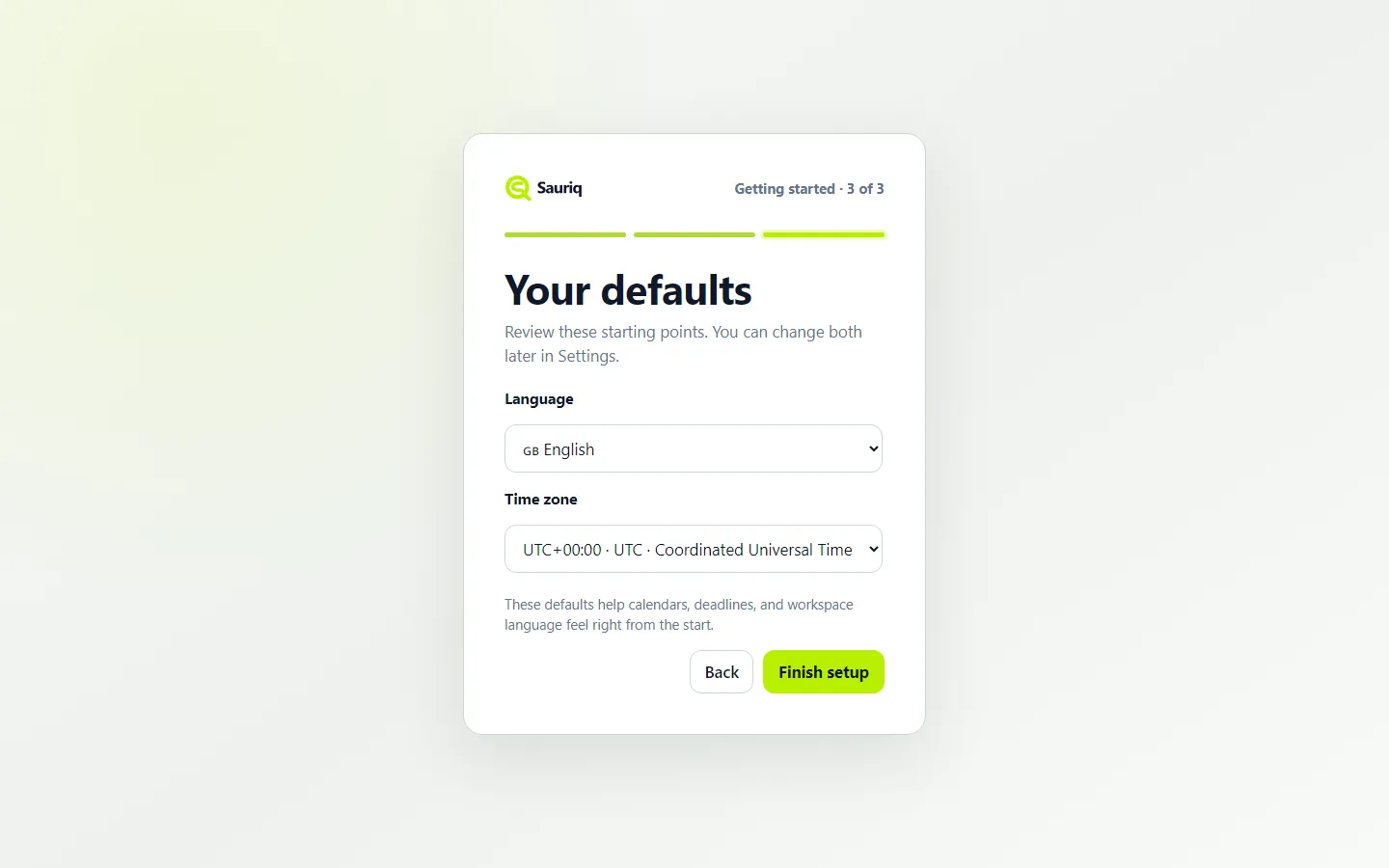
Section titled “Finish first-time setup”The first time you sign in, Sauriq asks for three things:
- Display name: the name your collaborators see across Sauriq.
- Language: English, Deutsch or Italiano.
- Time zone: used for calendars and deadlines.
Your browser suggests the language and time zone. You can change both later in Settings → My settings → Language & region. Select Finish setup to open the product.
Get into a workspace
Section titled “Get into a workspace”Joining your institution doesn’t open any research workspaces for you. A workspace’s owner or manager adds you from that workspace’s Members list. Until then, you see the workspaces shared with the whole institution and any you create yourself.
Sign in next time
Section titled “Sign in next time”- Go to app.sauriq.com. You can type while Sauriq checks for an existing session.
- Enter your Work email and select Continue.
- Enter your Password and select Sign in.
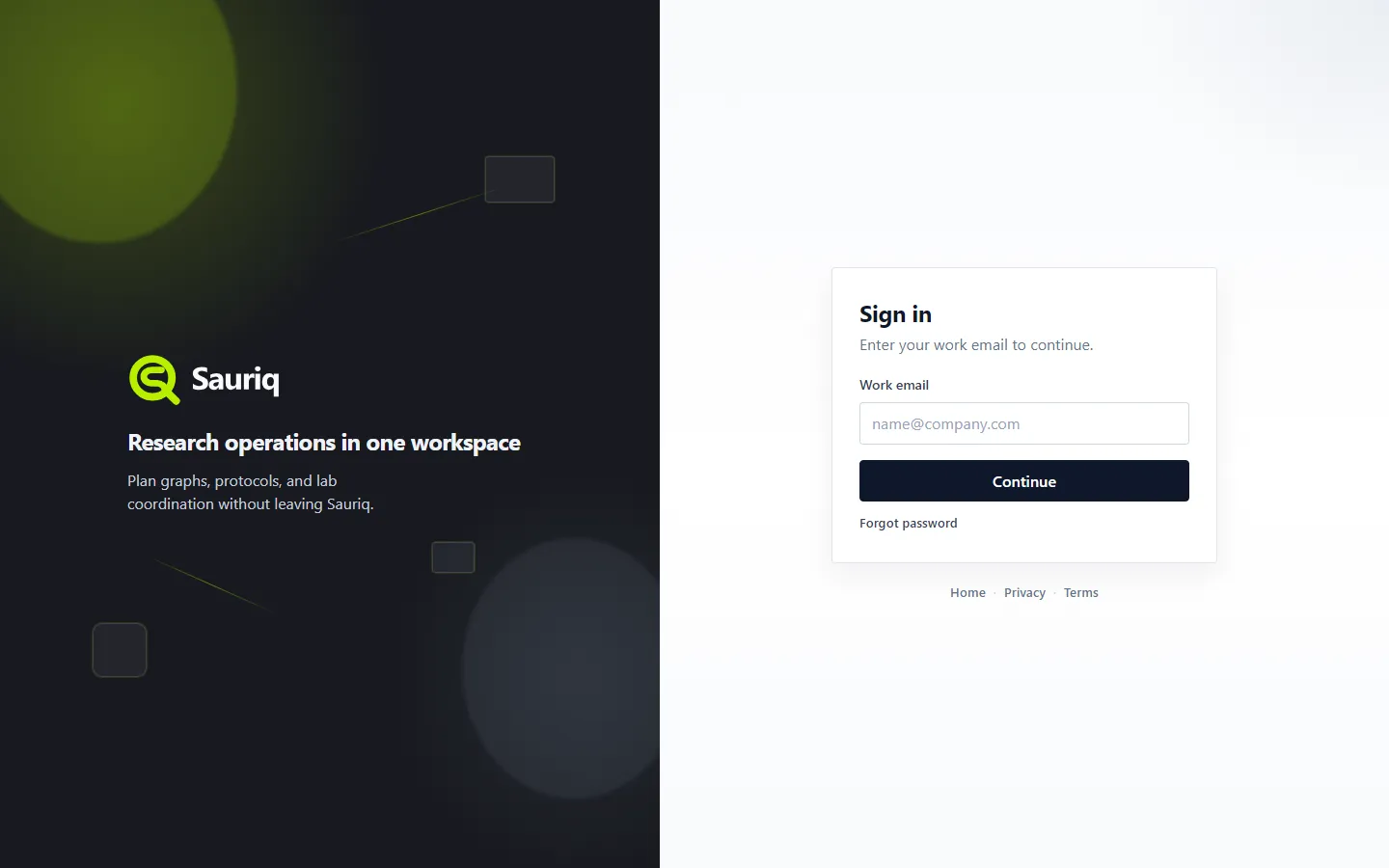
Sauriq opens your Start page after sign-in, which is Home unless you change it in Settings → My settings → Behavior. To use another address, select Use a different email on the password step.
If you forget your password, select Forgot password on the password step and follow the emailed link.
If your institution uses single sign-on (SSO), Sauriq sends you to your organization’s login after step 2, and password sign-in is turned off for your email domain.
Change your email or password
Section titled “Change your email or password”Open Settings → My account → Security.
- Email: select Change email, enter the new address and your current password, and select Send confirmation link. Sauriq emails a link to the new address. Your email changes only when you open that link and select Confirm new email, and the link expires after 24 hours. Your old address then gets a notice, and your other devices are signed out. You can’t move to an address another account already uses, or to one whose organization requires single sign-on.
- Password: select Change password and enter your current password and the new one twice. Your other devices are signed out, this one stays signed in, and Sauriq emails you a notice. Changing or resetting your password also cancels any pending email-change link. Request a new email change after recovering your account.
- Other devices: select Sign out other devices to end every other session at once.
If your organization manages your sign-in (SSO), Security shows a note in place of the email and password rows: change them with your organization’s identity provider. Sign out other devices still works.
If email confirmation reports a temporary error, you can retry on the same page. Opening a replacement email link in that tab uses the new link.
Export your data or delete your account
Section titled “Export your data or delete your account”Open Settings → My account → Delete account.
- Export your data: select Prepare export. Sauriq emails you when the zip is ready, and Download stays available for 7 days after it is ready. Expired exports are scheduled for removal from storage. You can prepare one export per hour. On a personal account the zip includes your workspaces, canvases, plans and uploaded files. In an organization it includes your profile, settings, memberships, time entries, comments, notebook pages and personal protocols, but not the organization’s workspaces and files.
- Delete account: select Delete account…. Sauriq lists what is deleted with your account and what stays in the lab as “Deleted member”. In an organization, workspaces you own go to the person the dialog names. Select Continue, enter your password, and type your account email to confirm. Deleting can’t be undone, so export first if you want a copy. You’re signed out and land on a confirmation page.
For an organization account, shared contributions and recorded time remain linked to a replacement account labelled “Deleted member”. Notes on your time entries are removed; copies of personal protocols already attached to shared work stay with that work. A single sign-on identifier may remain to prevent reuse of the deleted login. Files selected for deletion, including prepared exports, are queued for removal from storage.
For a personal-data request about shared contributions or information outside the account tools, write to [email protected]. The Privacy notice describes retention, backups and your rights.
If your organization manages your sign-in (SSO), there’s no password step, but you must have signed in within the last 10 minutes. Otherwise select Sign in again, then reopen the dialog.
Sauriq won’t delete the account when, for example, you’re the only owner of your organization (make someone else owner in Settings → Users first) or the only member of it (contact support to close it). The dialog says which applies.
Find your way around the sidebar, or go straight to building your first canvas.