

Finding your way around
The left sidebar is how you move around Sauriq. Hover an item for a moment to see what it does. This page goes through it from top to bottom.
On a phone-sized screen the sidebar shows icons only. The menu button at its top opens it over the page, and it closes again when you pick a destination.
To move past navigation with a keyboard, press Tab to reveal Skip to main content beside the sidebar and below the top bar, then press Enter. The link stays hidden until it receives focus.
Your start page. Under the greeting, one line says whether any of your workspaces need attention. Below that:
- Resume reopens the workspace you used last, or suggests one that has overdue or flagged work.
- Your day lists the open tasks assigned to you, today’s schedule, and how many updates arrived in your workspaces. Select a task to open it.
- Your workspaces shows each workspace with your open and overdue work in it, most urgent first, and the next task due.
- Research pulse lists your overdue and flagged tasks first, then recent updates and comments.
- Go to shows direct links to Workspaces, Plans, Knowledge and Time, plus Collaboration when it is available.
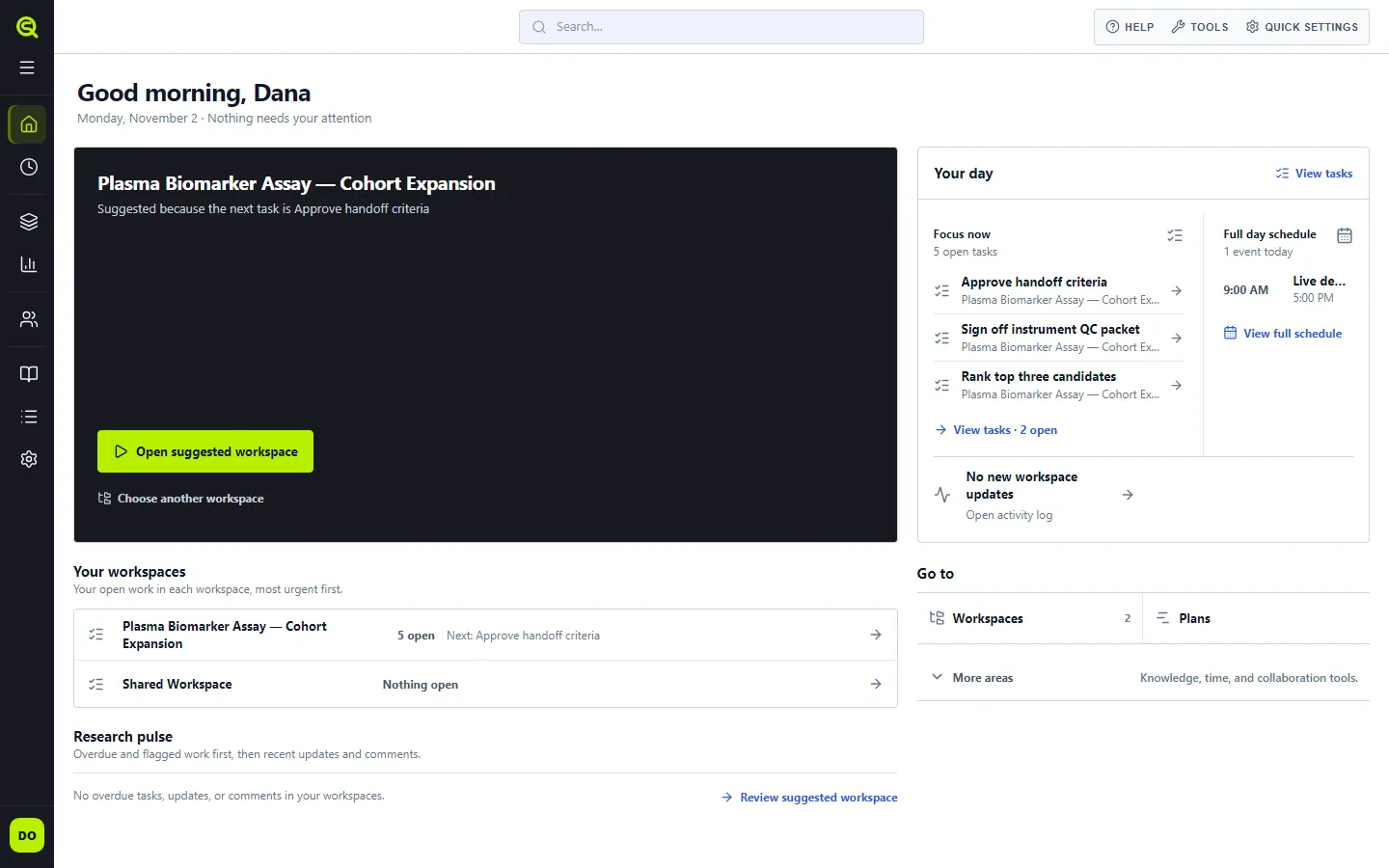
If updates or comments can’t be loaded, Home says so instead of showing zero. Reload the page to try again.
Browse: your workspaces
Section titled “Browse: your workspaces”A workspace holds one piece of research: its canvases, plans, work packages and files. Most of your time in Sauriq is spent inside one.
- Explorer lists the workspaces you can open. The shared Institution Workspace holds canvases, plans and files for everyone in your institution. Your research workspaces are listed below it. When a workspace is open, its name shows under Explorer.
- Plans opens the active workspace’s plans. Each plan has Canvas, Table, Gantt, Kanban and Calendar tabs. The Canvas tab is the map of your experiment, built from nodes and the links between them.
Opening a plan returns to the last tab you used in this browser. On your first visit, it opens Canvas if the plan has one, or Table otherwise. If a plan has no canvas, workspace editors can create one from its Canvas tab, either empty or with Quick build, which sets up a starter canvas and plan from a short form.
Task edits in the plan save automatically. Switching plans lets pending edits finish saving in the plan where you made them.
A workspace’s files are in Explorer too. Open the workspace there to upload, preview and organize them in folders. Explorer lists each plan once: its canvas is the plan’s Canvas tab, so it has no row of its own. Opening the plan row opens the plan the same way Plans does.
Use the work package picker to open a package and its child packages. Choose All to return to the workspace root. Search and a specific type filter show matches across the workspace. The type picker shows the active filter, including when you open a saved link.
The Institution Workspace also has a Tutorials work package with read-only example plans and a canvas to learn from. See Tutorial examples.
If a workspace’s contents cannot load, Explorer shows an error with Try again. A failed load does not mean that the folder is empty. Cancelling a file or folder deletion leaves it unchanged.
Organization: people and time
Section titled “Organization: people and time”- Teams shows capacity across your institution’s teams: who is allocated to what, how that compares with tracked hours, and who is working remotely. Use the top row to switch between past tracked hours and future allocation. Filter members by team, name or availability in the row below; Remote schedule opens the remote-work calendar.
- Time tracking is where you log hours against work packages and run reports. Team leads and team supervisors also see their teams’ hours in Reports under Team; institution owners and admins see every team’s. See Reports and insights.
Calendar time ranges include minutes and follow the 12-hour or 24-hour format selected in Settings → My settings → Language & region.
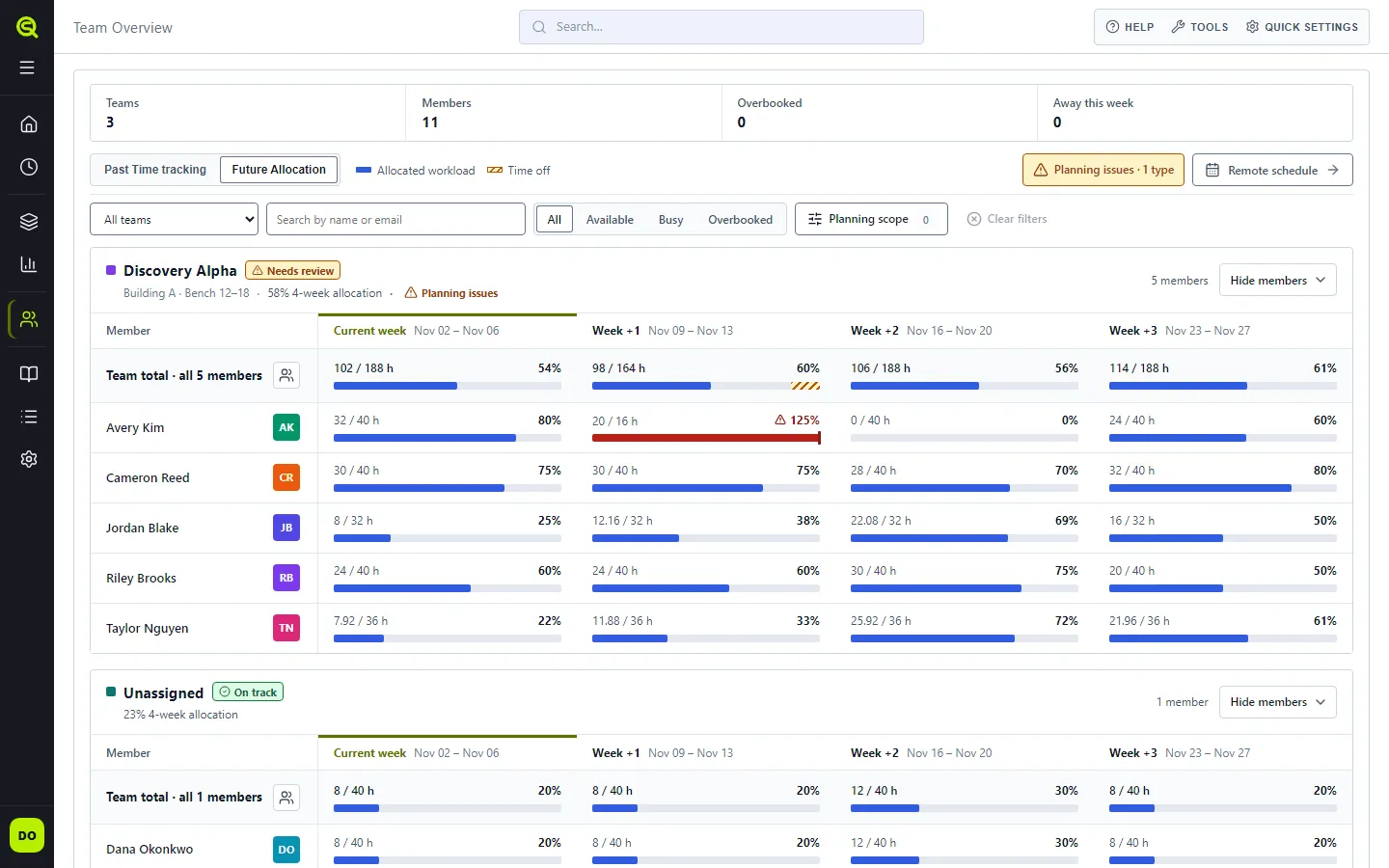
Open a teammate’s name in Teams to see their profile, past tracked hours, upcoming allocation, open tasks and recent activity. Location, time off and working hours appear beside the main column, or below it on smaller screens.
Choose Capacity calendar on a teammate’s details page to view their bookings. The tab has its own address, so a saved or shared link reopens the calendar. Page help follows the selected tab: on the calendar, it explains adding activities, navigating dates and switching views.
Allocation bars count the hours planned on scheduled tasks. Calendar bookings don’t add to them, except time off, which lowers the hours a teammate has available that week and shows as a striped segment at the end of the bar. Loads can exceed 100% when someone is overbooked; a teammate who is off all week but still has planned hours shows those hours as excess instead of a percentage.
Select an upcoming week on a teammate’s bar, in the overview or on their details page, to see where its planned hours come from: each workspace’s share, and the work packages within it. Switch to Month to see the month that week falls in, week by week. Workspaces you can’t open are added up under Other workspaces, so the shares add up to the hours on the bar. You need permission to see the teammate’s schedule.
Teams without members are hidden unless you select them in the team filter. For a team with one member, the team total appears when the team is collapsed, its member is filtered out, or a planning scope is active.
What you see here depends on your institution’s plan and on what your admins share with you.
Knowledge
Section titled “Knowledge”- Library holds your notebooks and protocols, both your personal ones and the ones shared with your institution, and the node blueprints built from them. See Library.
- Activity is a log of changes across the workspaces you can see. It loads the newest 200 events of each workspace and says when older activity is not loaded. Days and times follow your institution’s calendar timezone.
Settings
Section titled “Settings”Settings is at the bottom of the left sidebar. It has three groups:
- My account has Security, to change your email or password and sign out your other devices, and Delete account. See Change your email or password.
- My settings applies only to you:
- Language & region: language, time zone, the first day of the week, and time and date formats.
- Appearance: color mode, accent color, text size, the canvas background and reduced motion.
- Behavior: the page that opens after sign-in, how long a timer can run before stopping it asks how much to log, delete confirmations, and how long to hover a sidebar item before its description appears.
- Organization shows your institution’s Teams and Users, and Plan & usage: your plan, the shared upload limit and how much of it is used. Institution owners and admins can edit teams and users and open the team hierarchy, and they also see storage usage by person; everyone else sees teams and users read-only. On a Personal plan they also see a note that collaboration is available on Team, with a link to [email protected].
If Language & region, Appearance or Behavior cannot load your saved preferences, Save changes stays disabled so the displayed defaults cannot replace your settings. Reopen the category to try loading them again. If storage usage cannot load, Plan & usage shows an error instead of a storage meter.
The Teams directory lists each parent before its sub-teams, with its supervisor, member count and schedule visibility. System teams are listed separately. Owners and admins can select a row to edit that team or choose Team hierarchy to open the canvas.
In the Team hierarchy, choose a team in the outline or canvas to edit it in the inspector. Use Parent team to move it, or Tidy layout to arrange the canvas. The toolbar also has zoom and fit controls. Team edits save automatically; deleting a team asks for confirmation unless you have turned delete confirmations off, and includes its sub-teams. A team can’t be deleted while it is the only team allowed to see a schedule or a machine, or the only one allowed to book a machine, or while its own schedule visibility is all that hides a member’s schedule: change who can see or book it first, so deleting the team never shows those to the whole institution.
When you save a person or team, the dialog stays open until the save finishes. If it fails, the dialog shows the error and keeps your edits so you can correct them and try again.
If a page such as Settings, a plan or the Teams overview cannot load because of a server or connection problem, it opens the error page, which names the page that failed. Choose Try again to return to the same page (in Settings, the same category). After a server problem you can also choose Open Home to leave, or Report this problem to contact the Sauriq team. When an error reference is available, it is shown on the page and included in the report. After a connection problem, the page shows whether your device is back online.
The top bar
Section titled “The top bar”- Search (Ctrl+K, or ⌘+K on a Mac) looks across the product.
- Help opens Page help for the screen you’re on, opens this documentation in a new tab, and lets you report a problem, ask a question or share an idea with the Sauriq team. In Page help, click a step marked Show on page to highlight that part of the screen. What’s new lists what changed in each release. A dot on Help and on What’s new means there’s a release you haven’t read yet; it goes away once you open What’s new.
- Quick tools (notes, time and calculator) open a panel next to whatever you’re doing. Keyboard focus moves into the panel when it opens. Press Escape to close it and return focus to Tools; closing Page help returns focus to Help. Closed panels are skipped when you use Tab.
- Quick settings switches language, text size and dark mode without leaving the page. All settings opens the full Settings page.