

Roles and access
Access in Sauriq works at two levels. Your institution role covers your lab as a whole: people, teams and the shared storage. Your workspace role covers one workspace. Having one doesn’t give you the other: an institution admin doesn’t automatically see every research workspace, and a workspace owner doesn’t manage the institution.
Institution roles
Section titled “Institution roles”Everyone in an institution has one of these roles:
| Role | Can |
|---|---|
| Owner | Everything an admin can do, and make someone else the owner |
| Admin | Invite people, change roles, deactivate and reactivate people, edit teams and users in Settings → Organization, and manage everything in the Institution Workspace |
| Member | Use Sauriq, see the institution’s teams and users, and work in the Institution Workspace and any research workspace they’re added to |
Each institution has one owner. Institution owners and admins can also restore a workspace that’s scheduled for deletion, or delete it at once. See Workspaces.
Members can open Settings → Organization to look up teams, users and the machines they can see. Only owners and admins see the list of individual users who may book a machine and its visibility settings.
Manage people
Section titled “Manage people”Owners and admins manage people in Settings → Organization → Users. Select a person to see their status and role and the actions below.
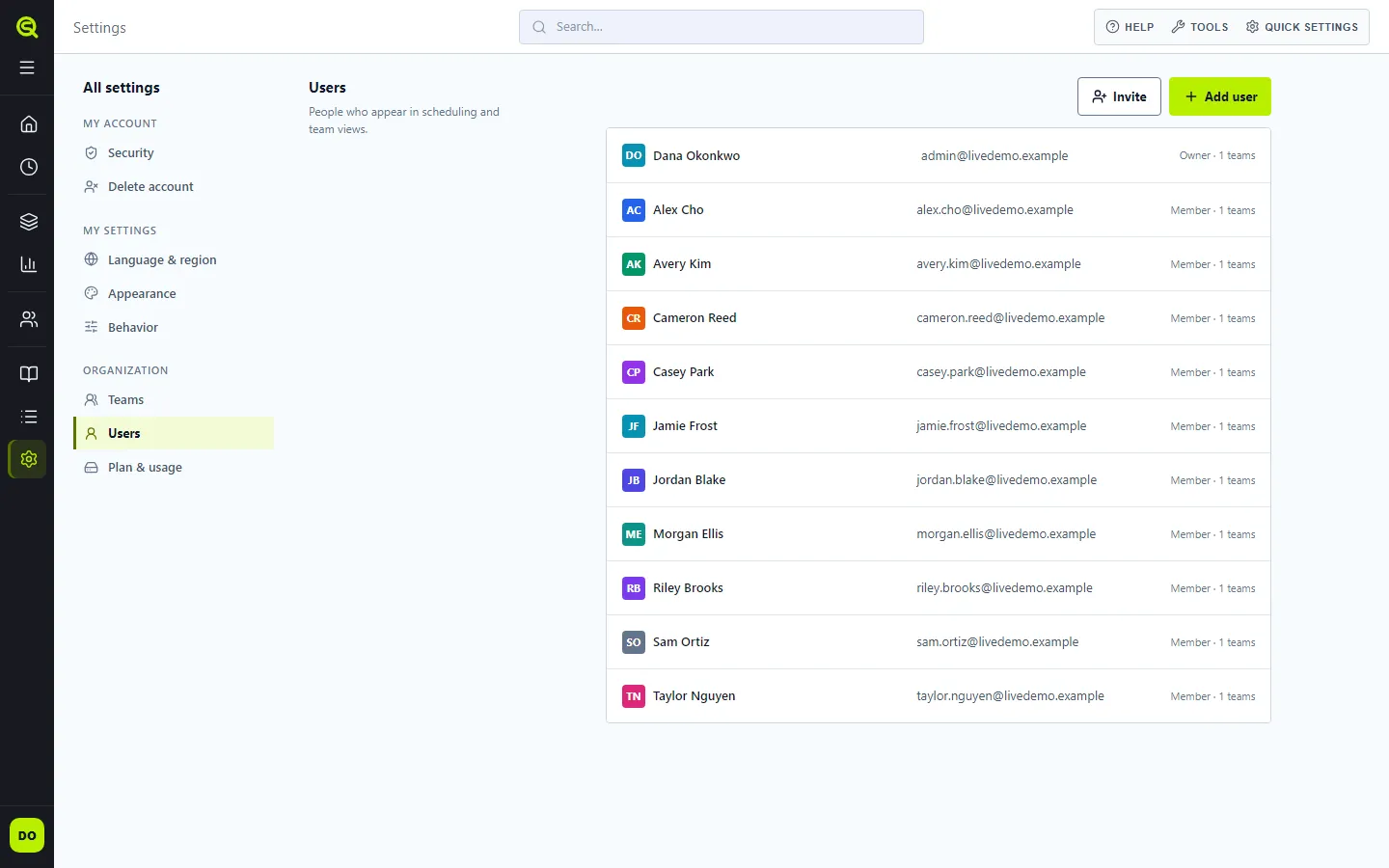
- Add someone: select Invite or Add user. Sauriq emails them a setup link that works for 7 days, and shows you the link to copy too. Until they set their password, they’re listed as Invited.
- Resend an invite: open an invited person and select Resend invite. They get a new link by email and you see it to copy. The previous link stops working.
- Change a role: pick Admin or Member under Role. The change saves at once. A promoted admin can use the admin pages straight away. Sauriq won’t demote the last owner or admin.
- Make someone the owner: only the owner can do this, with Make owner. You become an admin.
- Deactivate: select Deactivate and confirm. The person is signed out on every device and can’t sign in. Their work, comments, assignments and history stay where they are, marked Deactivated, and they aren’t offered when you assign tasks, add workspace members or build teams. The owner can’t be deactivated, and you can’t deactivate yourself.
- Reactivate: turn on Show deactivated, open the person and select Reactivate. They sign in with their existing password.
- Delete an invite: you can delete someone only while they’re still Invited, with Delete invite. Anyone who has signed in is deactivated instead. If that person is the only audience restricting a schedule or a machine’s visibility or booking access, change that access first. Deleting the person must not open access to everyone.
- Delete and anonymize: for someone who has left for good. Deactivate them first, then turn on Show deactivated, open the person and select Delete and anonymize. Sauriq shows what will be deleted with their account, what stays in the lab, and who takes over the workspaces they own (the earliest owner). Type their name to confirm. Their account, name and email are erased and can’t be restored. Their comments, time entries and the shared work they created stay, shown as Deleted member. If Sauriq can’t delete the person, for example because nobody can take over their workspaces, the dialog says why. You can’t delete yourself this way.
Sauriq keeps a record of who changed a role, transferred ownership, deactivated, reactivated or deleted someone, and when. The record of a deletion keeps no name or email.
Team leads
Section titled “Team leads”A team lead or a team’s supervisor sees the tracked hours of the people in that team, under Time tracking → Reports with the Team view, and can open one person’s hours from there. Owners and admins see every team’s hours. Other members see only their own.
Pages your role can’t use
Section titled “Pages your role can’t use”Sauriq only shows you links to pages your role can use. If you open the address of one that isn’t for you, such as the team hierarchy as a member, you see This page isn’t available.
Workspace roles
Section titled “Workspace roles”In a research workspace, each member has one of three roles. Whoever creates the workspace is its Owner.
| Owner | Manager | Member | |
|---|---|---|---|
| Open the workspace and its canvases, plans and files | ✓ | ✓ | ✓ |
| Edit canvases and plans, and upload and organize files | ✓ | ✓ | ✓ |
| Add and edit work packages | ✓ | ✓ | ✓ |
| Be assigned tasks | ✓ | ✓ | ✓ |
| Add and remove members and change their roles | ✓ | ✓ | |
| Schedule the workspace for deletion, or restore it | ✓ | ✓ |
There’s no read-only workspace role: every member can edit.
The owner can’t be removed from their own workspace.
Add someone to a workspace
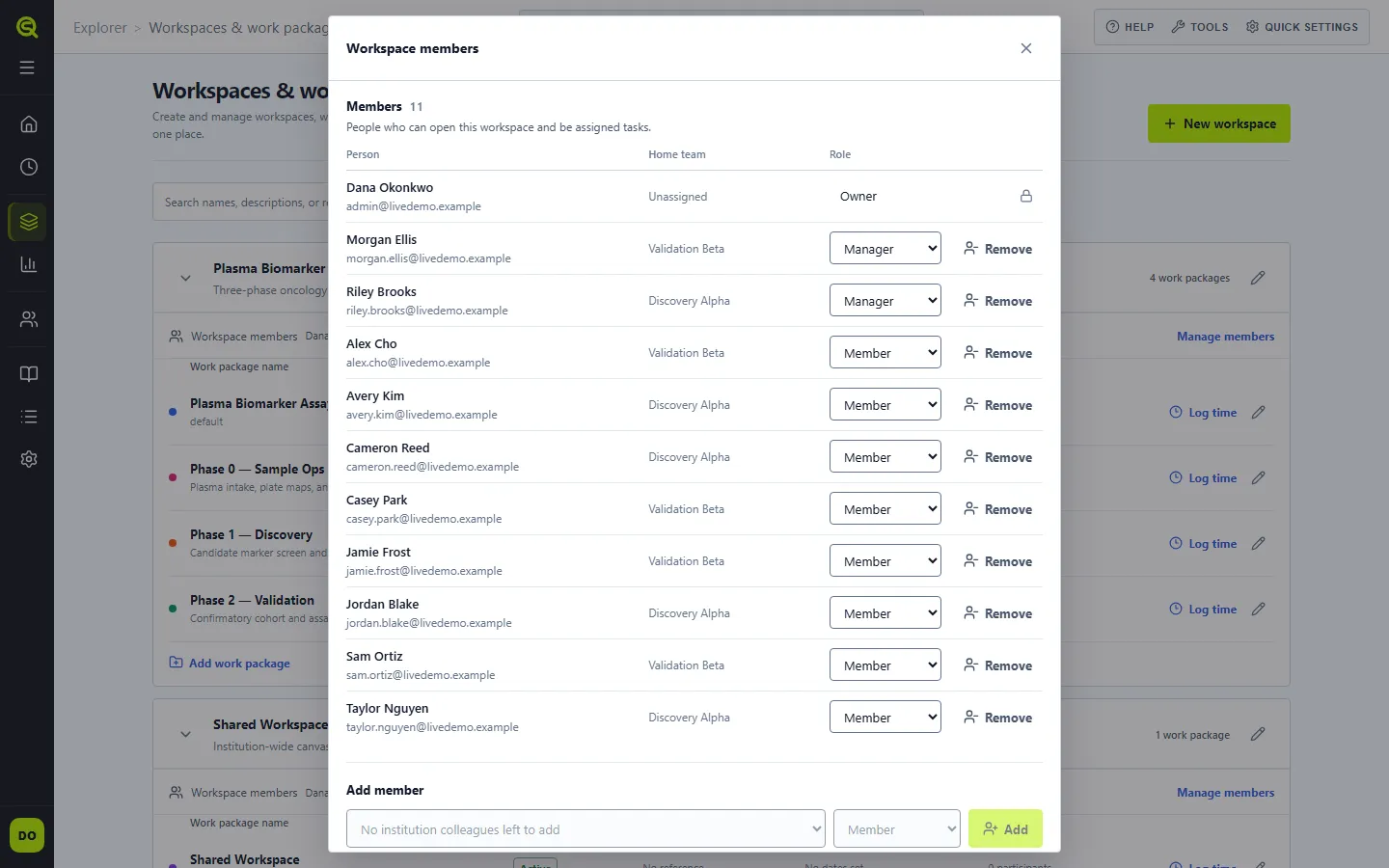
Section titled “Add someone to a workspace”- Open Explorer → Workspaces & work packages and choose Manage members under the workspace.
- Choose a person, pick their role and select Add.
You can only add people who are already in your institution. If someone is missing, an institution admin can invite them straight into the workspace.
The dialog’s title stays in view while you scroll through members and pending invites.
Change someone’s workspace role
Section titled “Change someone’s workspace role”You need to be the workspace’s owner or a manager.
- Open Explorer → Workspaces & work packages and choose Manage members under the workspace.
- In the person’s row, pick Manager or Member under Role.
The change saves at once and Sauriq shows Role updated. To take someone out of the workspace, select Remove in their row and confirm. The owner’s row can’t be changed. Remove and Revoke ask for confirmation unless you have turned delete confirmations off in Settings → My settings → Behavior.
Invite someone to a workspace by email
Section titled “Invite someone to a workspace by email”Only institution owners and admins can send workspace invites, including admins who aren’t members of that workspace. Workspaces on a Personal plan can’t send invites.
- Open Manage members for the workspace.
- Under Invite by email, enter their email, pick Manager or Member, and select Send invite.
Sauriq emails them a link to join the workspace with that role. The link is also shown to you once, so you can copy it and send it another way if the email doesn’t arrive.
- Someone new to Sauriq gets an account in your institution straight away. They show as Invited in Settings → Organization → Users until they accept.
- Someone already in your institution signs in with the invited email to accept.
- Someone whose email belongs to another institution can’t be invited.
Pending invites lists every invite that hasn’t been accepted. It shows the role, when the link was last sent and by whom, and whether it has expired.
- Resend emails a new link that lasts 7 days. The previous link stops working.
- Revoke asks you to confirm, then stops the link working. Someone who was new to Sauriq still shows as Invited in Users, where you can delete the invite.
An invite also stops working if the workspace is scheduled for deletion, or if the person who sent it is deactivated or is no longer an owner or admin. Send a new one in that case. See Getting access.
The Institution Workspace
Section titled “The Institution Workspace”Everyone in the institution can open the Institution Workspace without being added to it. Its rules protect what other people have contributed:
- Anyone can create canvases, plans and other content, and upload files.
- You can change or delete only what you added yourself.
- Institution owners and admins can change or delete anything, including content left behind by someone who has left the institution.
Files in the Institution Workspace have a few more rules about folders. See Files and attachments.
What other people see of your work
Section titled “What other people see of your work”- Members of a workspace see everything in it, including tasks assigned to others.
- People outside a workspace don’t see its contents. In team and time reports, its name shows as Private workspace.
- Home is personal. It collects your own tasks, comments and updates, and nobody else sees your Home.