

Workspaces
A workspace is the container for one piece of research. Everything about that research lives inside it:
- Canvases, the maps of your experiments
- Plans, the schedules behind them
- Work packages, which group the work and the hours spent on it
- Files, in folders, which you manage in Explorer
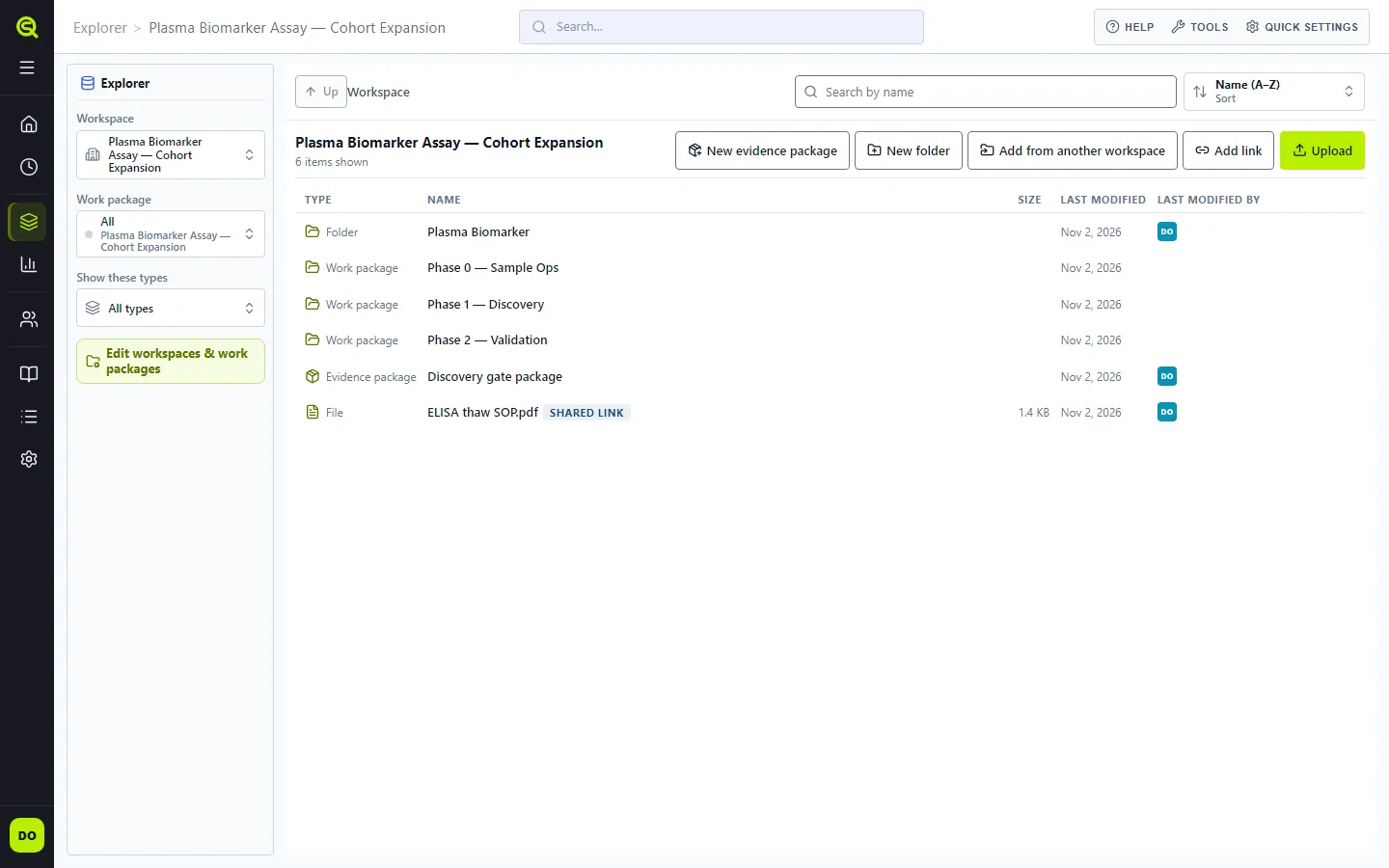
People see a workspace only if they’re one of its members. Being in your institution isn’t enough on its own.
Two kinds of workspace
Section titled “Two kinds of workspace”Research workspaces are the ones you and your colleagues create, usually one per study or project. Only their members can open them. They’re listed under Research workspaces in Explorer.
The Institution Workspace is shared with everyone in your institution. Use it for canvases, plans and files that the whole lab should see, such as common procedures or equipment notes. It’s listed under Shared in Explorer, and you don’t need to be added to it.
Anyone in the institution can add to the Institution Workspace. Changing or deleting something there is limited to the person who added it and to institution admins. See Roles and access.
Create a workspace
Section titled “Create a workspace”- In the sidebar, open Explorer.
- In Choose a workspace, select New workspace beside the search field.
- Enter a Workspace name and press Enter or select Create. Press Escape to close the field without creating anything.
If you have no workspaces, Explorer shows the Workspace name field straight away: enter a name and select Create workspace.
You become the workspace’s Owner, and Sauriq opens it as your active workspace. A new workspace already has one plan with a canvas, and one default work package with the same name as the workspace.
If Sauriq can’t create the workspace, it shows the reason above the list, and you can still open any of your existing workspaces.
On a Personal plan you work alone, so a workspace has only you as a member. See Personal and Team.
The active workspace
Section titled “The active workspace”Sauriq remembers one active workspace at a time. Plans in the sidebar opens the plans of that workspace, and its name shows under Explorer. Opening a different workspace from Explorer makes it the active one.
Manage workspaces
Section titled “Manage workspaces”Explorer → Workspaces & work packages lists every workspace you can open, with its work packages underneath. From there you can:
- Edit a workspace’s name and description.
- Add and edit work packages.
- Open Manage members to add people, change their roles or remove them. Only owners and managers can change members.
Delete a workspace
Section titled “Delete a workspace”Deleting a workspace takes two steps, so a mistake can be undone. You need to be the workspace’s owner or a manager.
- Open Explorer → Workspaces & work packages.
- Select Edit workspace (the pencil) next to the workspace.
- Select Schedule deletion and confirm.
The workspace becomes read-only and leaves Explorer, and Sauriq opens Archived workspaces, the list of workspaces waiting to be deleted. Sauriq deletes it for good 14 days later, with its canvases, plans and files.
Restore a workspace
Section titled “Restore a workspace”Until the 14 days have passed, the workspace’s owner, a manager or an institution admin can bring it back as it was.
- Go to Archived workspaces at app.sauriq.com/explorer/archived.
- Select the workspace.
- Select Restore workspace.
The workspace is listed in Explorer again, and everyone who was a member can open and edit it. An institution admin can instead choose Permanently delete now on the same page, which can’t be undone.
The Institution Workspace can’t be deleted.