

Work packages
A work package is a named unit of work inside a workspace, such as a grant work package, a study phase or a contract deliverable. Plans and their items belong to a work package, and you log your hours against one in Time tracking. Together, that tells you what each piece of work was planned to take and what it actually took.
The default work package
Section titled “The default work package”Every workspace has one default work package from the start. It has the same name as the workspace and follows it when the workspace is renamed. Anything you don’t assign to another work package belongs to the default one, so a small workspace never needs more than that.
Tutorial examples in the Shared Workspace
Section titled “Tutorial examples in the Shared Workspace”The institution-wide Shared Workspace includes a Tutorials work package with an Example: study timeline plan. It shows groups, milestones, dependencies and planned hours. The example content is currently in English and its dates are anchored to the week it was built.
Examples are read-only. An institution owner or admin can archive the Tutorials package to hide it and restore it later. Its plans are left out of Team load and account exports.
Add and edit work packages
Section titled “Add and edit work packages”Work packages are managed in Explorer → Workspaces & work packages, under each workspace:
- Choose Add work package under the workspace.
- Enter a Work package name and, if you like, a Description.
- Fill in any details you track:
- Status: Active, On hold, Completed or Cancelled
- Internal reference and External reference, for example your cost centre and the funder’s grant number
- Expected start and Expected end
- Select Save.
New work packages appear after the existing packages in the workspace’s order.
To change one later, select Edit work package next to it. Members who can edit the workspace can add and edit its work packages. The default work package’s name can’t be edited on its own; rename the workspace instead.
In the institution-wide Shared workspace, you can change a work package if you created it or are an institution owner or admin. Reordering requires permission to change every work package in the list.
By default, archiving an Active work package marks it Completed, and restoring a Completed or Cancelled package makes it Active. If you choose a status in the same change, Sauriq keeps your choice.
How plans and items use them
Section titled “How plans and items use them”Each plan has a work package, chosen with Work package in the Plans switcher. A plan with no work package chosen uses the workspace’s default.
Each plan item uses its plan’s work package unless you choose a different one in the item’s Work package field. Choose Use plan work package to go back to inheriting it. In the Gantt, Group by → Work package shows the plan split by work package, and Filters can narrow any view to one.
Logging time
Section titled “Logging time”In Time tracking, every hour you log goes against a work package of a workspace you can open. Only work packages with the status Active or On hold accept new hours; set a finished one to Completed to stop time being logged against it.
Recent work packages and the entries on the board show the work package name first and the workspace name under it; hover one to see both in full. Time logged against a workspace’s own top-level package shows as General.
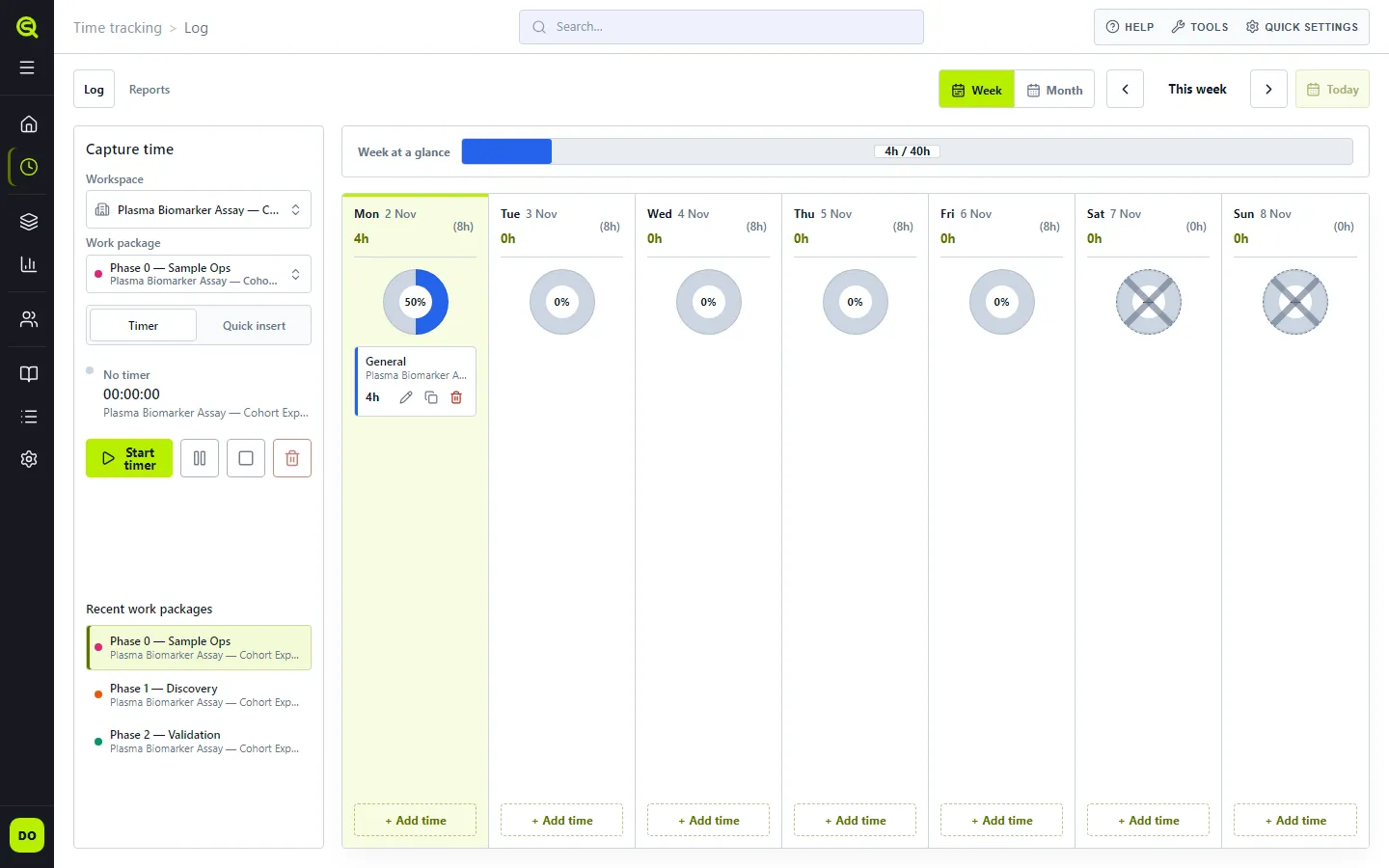
Type the duration into Hours in whichever form you think in: 1.5 or 1,5, 1:30,
1h 30m, 2h or 90m. The field shows what it read (for example = 1h 30m), and time is
saved to the minute. One entry is at most 24 hours, and so is everything you log on a single
day; if a save would take a day past 24 hours, the message under Hours says how much that
day already has.
Each work package has one entry per day. If you save time for a work package that already has an entry that day, Sauriq asks whether to merge the two; Merge entries adds your hours and note to the existing entry.
To copy an entry to another day, choose Duplicate on its card and pick where the copy goes: Today, Tomorrow, the day selected on the board, or Pick a date… for any other day. The entry’s own day can’t be chosen; use Edit to change its hours instead. To move an entry rather than copy it, drag it onto another day.
Log time next to a work package in Workspaces & work packages takes you straight there.
The timer
Section titled “The timer”Pick a work package and choose Start timer. The timer runs on Sauriq’s servers, not in your browser: it keeps going when you close the tab, and it shows in your other tabs and on your other devices, where you can pause, resume or stop it too. If one tab is out of date when you use it, Sauriq shows the timer as it really is and says it was changed in another tab.
Stop timer logs the time the timer ran, not counting pauses, to the minute. A timer that runs past midnight is split by your browser’s time zone: each day gets the minutes that fell on it. If the work package already has an entry on one of those days, Sauriq asks once whether to merge them, listing each day. Discard timer throws the timer away without logging anything. If the timer’s work package can no longer take time, for example because it was completed or you lost access, Stop asks you to choose another work package to log the time to.
A timer that ran longer than 12 hours asks before logging anything, and shows how the time splits across days. You can log all of it, type a smaller amount, or discard it. The same question appears when the time would take a day past 24 hours, so you can log less. Change the 12 hours in Settings → My settings → Behavior.
These questions belong to the timer you stopped. If that timer is stopped, discarded or replaced in another tab, or you sign in as someone else, while one is open, it closes, so logging or discarding from it never touches a different timer.
If a timer was running in your browser before the timer moved to Sauriq’s servers, Sauriq offers once to Resume it (showing its work package and start time) or Discard it.
Reports and insights
Section titled “Reports and insights”Reports
Section titled “Reports”Time tracking → Reports turns logged hours into a table you can read on the page or export. It opens on the current month; during the first week of a month it also includes the month before.
If you can see team hours, choose between My time and Team at the top. Team leads and team supervisors see their own teams’ hours, and institution owners and admins see every team’s. Everyone else always sees My time. Your choice stays while the browser tab is open.
Set up the report in the filter rows:
- From and To pick the dates.
- Workspace and Work package narrow the report to one of each.
- In Team, Team and Member narrow it to one team or one person.
- Rows chooses how the table is broken down: Work package, Workspace, Day, ISO week or Month, plus Team member in Team. Select + to add a Then level under it, up to four levels; × removes one.
- Columns spreads a second breakdown across the top, for example Month to compare months side by side. Leave it at None for a plain list. ⇄ swaps rows and columns.
Select Apply to update the results, or Clear to go back to the defaults.
The results table is titled with its breakdown, such as Work package → Month. Without columns, each row shows its Hours, its Share of the total, when time was Last logged and how many Entries it has. Type in Search results to find a row. The page previews up to 200 rows and says Preview truncated when there are more. If nothing was logged in the period, Show last 3 months widens it in one step.
Export downloads a CSV of the report as the filters are set, with every row, not only the ones in the preview.
Saved presets
Section titled “Saved presets”Open Saved presets at the bottom of Reports to keep a report setup you use often. Type a name and select Save preset: it stores the dates, filters, rows and columns. Select Apply next to a preset to load it again, or Delete to remove it. Presets are saved to your account, with separate lists for My time and Team.
Insights
Section titled “Insights”Insights summarizes your own logged time for a period. It has no link in the sidebar yet:
open it at /time-tracking/insights in Sauriq’s address.
Choose a Period (This week, Last week, This month or Last month) or set From and To for a custom range. Insights shows:
- Total hours, Days logged, and averages per logged day (Avg / logged day) and per calendar day (Avg / calendar day)
- Hours over time across the period
- Your hours By work package, By workspace and By weekday
- Days with no hours, so gaps stand out
- The period’s Entries
Extract this view opens Reports for the same dates, where you can break the time down further and export it.